RL-suite Overview
Welcome to the RL-suite documentation! This suite is designed to provide comprehensive resources for developing and testing reinforcement learning algorithms with a focus on space robotics. Below you will find links to various sections of our documentation, including installation instructions, examples, task details, development guides, and benchmarks.
Table of Contents
- Installing the suite: Step-by-step guide on how to get the RL-suite up and running on your system.
- Examples of using the suite: A collection of examples showcasing the capabilities of the RL-suite and how to use it for your projects.
- Task Details: Detailed descriptions of the tasks available within the suite, including their objectives, input/output specifications, and evaluation metrics.
- Developing new tasks and adding assets: Guidelines on how to extend the RL-suite by developing new tasks or adding new assets.
- Benchmarks: Benchmark results for different reinforcement learning algorithms using the tasks provided in the suite.
Getting Help
If you encounter any issues or have questions regarding the RL-suite, please don’t hesitate to reach out by emailing me at abmoRobotics@gmail.com.
Thank you for exploring the RL-suite.
Installation Guide
This guide provides detailed instructions for setting up the RL-suite using Docker, which simplifies the installation process of Isaac Sim, Isaac Lab, and our suite. Additionally, we provide steps for native installation.
Prerequisites
Before you begin, ensure your system meets the following requirements:
Hardware Requirements
- GPU: RTX GPU with at least 8 GB VRAM (Tested on NVIDIA RTX 3090 and NVIDIA RTX A6000)
- CPU: Intel i5/i7 or equivalent
- RAM: 32GB or more
Software Requirements
- Operating System: Ubuntu 22.04 or 24.04
- Packages: Docker and Nvidia Container Toolkit
Installation
There are two ways to install the RL-suite: using Docker or natively.
The steps for each method are outlined in the following pages:
Docker
Installation Using Docker
Docker is the recommended installation method as it provides a consistent environment with all dependencies pre-installed.
The image is pinned to Isaac Sim 6.0.1 (including its multi-architecture image digest), Isaac Lab
v3.0.0-beta2.patch1 (ffff603), and Python 3.12.
Prerequisites
-
.Xauthority for graphical access: Run the following command to verify or create .Xauthority.
[ ! -f ~/.Xauthority ] && touch ~/.Xauthority && echo ".Xauthority created" || echo ".Xauthority already exists" -
Nvidia Container Toolkit: see nvidia-container-toolkit
After installing the toolkit remember to configure the container runtime for docker using
sudo nvidia-ctk runtime configure --runtime=docker
sudo systemctl restart docker
You may need to allow docker to access X server if you want to use the GUI:
xhost +local:docker -
Login to NGC
- Generate NGC API Key
- Login with the NGC API as password
Username: $oauthtoken Password: -
Docker Compose:
- Install Docker Compose
- Verify using
docker compose version
Building the Docker Image
-
Clone the repository and navigate to the docker directory:
git clone https://github.com/abmoRobotics/RLRoverLab cd RLRoverLab -
Download terrain assets:
pip3 install gdown python3 download_usd.py -
Build and start the Docker container:
cd docker ./run.sh docker exec -it rover-lab-base bash -
Verify the installed versions inside the container:
cd /workspace/rlroverlab
python tools/verify_stack.py
Usage
Training an Agent
To train an agent headlessly, use the following command inside the Docker container:
cd /workspace/rlroverlab
python examples/02_training/train.py --task="AAURoverEnv-v0" --num_envs=256 --viz none
Evaluating a Pre-trained Policy
To evaluate a pre-trained policy, use the following command inside the Docker container:
cd /workspace/rlroverlab
python examples/03_inference/eval.py --task="AAURoverEnv-v0" --num_envs=32 --viz none
Running with the Kit viewer
Pass --viz kit from a machine with a working local display and X11 access:
cd /workspace/rlroverlab
python examples/01_demos/01_zero_agent.py --task="AAURoverEnvSimple-v0" --num_envs=1 --viz kit
Isaac Lab 3.0 deprecates --headless; use --viz none to force headless execution. Camera and RGB-D tasks enable their required camera extensions automatically.
Development Workflow
The Docker setup bind-mounts the repository to /workspace/rlroverlab/, so any changes you make to the code on your host machine are immediately reflected inside the container. This makes it ideal for development:
- Edit code on your host machine using your preferred editor
- Run/test inside the container
- No need to rebuild the container for code changes
Native
Native Installation
Docker is the validated installation path. For native development, use a clean Python 3.12 environment and the exact Isaac Sim/Lab versions below.
Prerequisites
- Ubuntu 22.04 or 24.04
- Python 3.12
- NVIDIA RTX GPU and a compatible production driver
- At least 50 GB of free disk space
git,git-lfs, and uv
Install the pinned simulation stack
uv venv --python 3.12 --seed env_roverlab
source env_roverlab/bin/activate

uv pip install "isaacsim[all,extscache]==6.0.1.0" \
  --extra-index-url https://pypi.nvidia.com \
  --index-strategy unsafe-best-match \
  --prerelease=allow

git clone https://github.com/isaac-sim/IsaacLab.git \
  --branch v3.0.0-beta2.patch1
cd IsaacLab
test "$(git rev-parse HEAD)" = "ffff603eafc6b74264a5261cc0183d6a65390d78"
./isaaclab.sh --install 'rl[skrl],visualizer[kit]'
cd ..
Install RLRoverLab
git clone https://github.com/abmoRobotics/RLRoverLab.git
cd RLRoverLab
uv pip install --editable .
python download_usd.py
Set the source checkout location when it differs from the Docker default, then verify the stack:
export ISAAC_LAB_PATH="$(cd ../IsaacLab && pwd)"
python tools/verify_stack.py
Run navigation
Force headless execution with --viz none:
python examples/01_demos/01_zero_agent.py \
  --task AAURoverEnvSimple-v0 --num_envs 1 --viz none
Open the local Kit viewer with --viz kit:
python examples/01_demos/01_zero_agent.py \
  --task AAURoverEnvSimple-v0 --num_envs 1 --viz kit
Use --device cpu when CPU physics is required. Isaac Lab 3.0 deprecates the old --headless and --cpu flags.
Manipulation configurations are not currently set up or included in the validated workflow.
Quick Start Guide
This guide will help you get started with RLRoverLab quickly. Follow these steps to set up the environment and run your first training or evaluation.
Prerequisites
Before starting, ensure you have:
- NVIDIA GPU with at least 8GB VRAM
- Ubuntu 20.04 or 22.04
- Docker and NVIDIA Container Toolkit installed (see Docker Installation)
Quick Setup with Docker
-
Clone the repository:
git clone https://github.com/abmoRobotics/RLRoverLab cd RLRoverLab -
Download terrain assets:
pip3 install gdown python3 download_usd.py -
Start the Docker container:
cd docker
./run.sh
docker exec -it rover-lab-base bash
Running Your First Example
1. Train a Simple Agent
Train a PPO agent on the simple AAU rover environment in forced headless mode:
cd examples/02_training
/workspace/isaac_lab/isaaclab.sh -p train.py --task="AAURoverEnvSimple-v0" --num_envs=128 --viz none
2. Evaluate a Pre-trained Model
If you have a trained model, evaluate it:
cd examples/03_inference
/workspace/isaac_lab/isaaclab.sh -p eval.py --task="AAURoverEnvSimple-v0" --num_envs=32 --checkpoint=path/to/your/model.pt --viz none
3. Demo with Zero Agent
Run a basic demo in the Kit viewer:
cd examples/01_demos
/workspace/isaac_lab/isaaclab.sh -p 01_zero_agent.py --viz kit
Available Environments
The suite provides several pre-configured environments:
| Environment ID | Robot | Description |
|---|---|---|
AAURoverEnvSimple-v0 | AAU Rover (Simple) | Simplified rover with basic sensors |
AAURoverEnv-v0 | AAU Rover | Full rover with advanced sensors |
Exomy-v0 | Exomy | ESA’s ExoMy rover |
What’s Next?
- Explore more examples
- Learn about available environments
- Understand the training process
- Add your own robot
Troubleshooting
Common Issues
- GPU Memory Issues: Reduce
--num_envsparameter - Docker Permission Issues: Ensure your user is in the docker group
- Display Issues: Run
xhost +local:dockerbefore starting the container
For more detailed troubleshooting, see the Installation Guide.
Examples
We provide a number of examples on how to use the suite, these can be found in the examples directory. Below we show how to run the files.
Training a new agent
In the example we show how to train a new agent using the suite:
# Run training script or evaluate pre-trained policy
cd examples/02_training/train.py
python train.py --task="AAURoverEnv-v0" --num_envs=128
python train.py --task="AAURoverEnvSimple-v0" --num_envs=128
Using pre-trained agent
# Run training script or evaluate pre-trained policy
cd examples/03_inference
python eval.py --task="AAURoverEnv-v0" --num_envs=32
python eval.py --task="AAURoverEnvSimple-v0" --num_envs=32
Recording data
# Run training script or evaluate pre-trained policy
cd examples/03_inference
python eval.py --task="AAURoverEnv-v0" --num_envs=32 --dataset_name="dataset_name" --dataset_dir="../../datasets"
python eval.py --task="AAURoverEnvSimple-v0" --num_envs=32 --dataset_name="dataset_name" --dataset_dir="../../datasets"
See Dataset Recordings for the legacy robomimic-style HDF5 format and the optimized RGB-D format.
Mapless Navigation
In this task we teach an agent to autonomously navigate to target locations using local terrain information. Below we present the rewards, neural network, and terrain environment used for this task.
Rewards
For the rover to actually learn to move, it needs some kind of indication of whether an executed action helps to accomplish the goal or not. Therefore, a set of reward functions has been implemented, evaluating if the rover moved in the right direction or if the action was beneficial in another way, e.g., to avoid a collision. For each reward function, there is a weight that defines how much influence the individual reward function has on the total reward. The weights are defined in the table below.
| Reward Function | Weight |
|---|---|
| Relative distance | |
| Heading constraint | |
| Collision penalty | |
| Velocity constraint | |
| Oscillation constraint |
Relative distance reward
To motivate the agent to move towards the goal, the following reward function is created: where, is a non-negative number that will increase from a number close to zero towards 1, when the rover gets closer to the goal.
Heading constraint
This reward describes the difference between the direction the rover is heading and the goal. If the heading difference is more than 90 degrees, the agent receives a penalty to prevent it from driving away from the goal. Through empirical testing the angle is set to ±115 degrees, because the rover may sometimes need to move around objects and therefore go backwards. The mentioned penalty is defined as:
where is the angle between the goal location and rover heading.
Collision penalty
If the rover collides with a rock it will receive a penalty for colliding as seen in the equation:
Velocity constraint
To ensure that the rover is not driving backwards to the goal, a penalty for non-positive velocities is given, implemented as follows:
where is the linear velocity of the rover.
Oscillation constraint
To smooth the output of the neural network, a penalty is implemented to discourage sudden changes by comparing the current action to the previous action:
where is the action at time .
Total reward
At each time step, the total reward is calculated as the sum of the outputs of all presented reward functions:
Neural Network
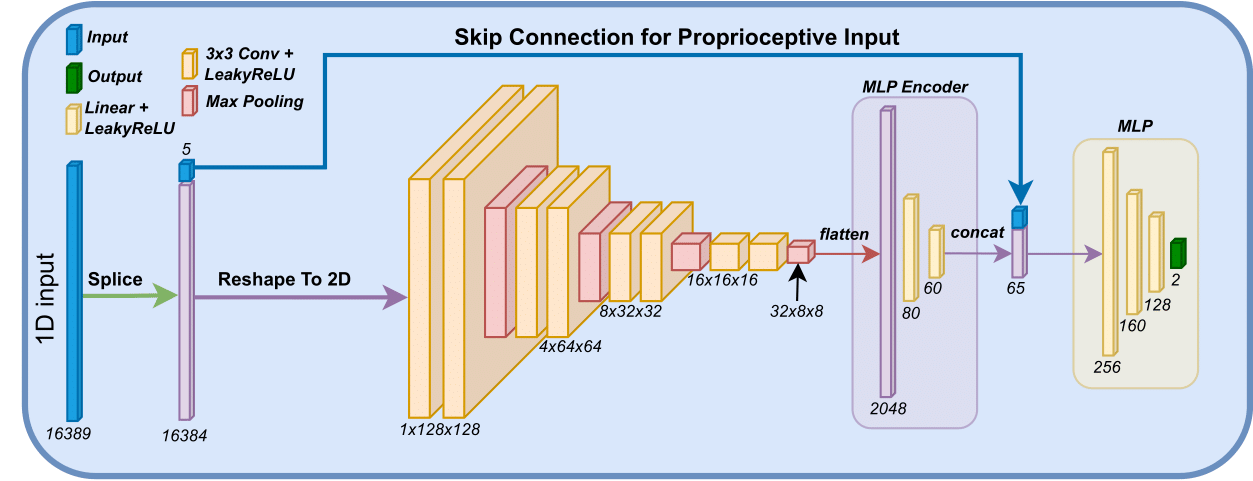
As training is performed using an on-policy method, the policy is modeled using a Gaussian model. The network architecture is designed to generate a latent representations of the terrain in close proximity to the rover denoted . This is defined as
where are encoders for the terrain input. The encoder consist of two linear layers of size [60, 20] and utilize LeakyReLU as the activation function. A multilayer perceptron is then applied to the latent representation and the proprioceptive input as
where refers to the actions and is a multilayer perceptron with three linear layers of size [512, 256, 128] and LeakyReLU as the activation function. The network architecture is visualized below.
Environment
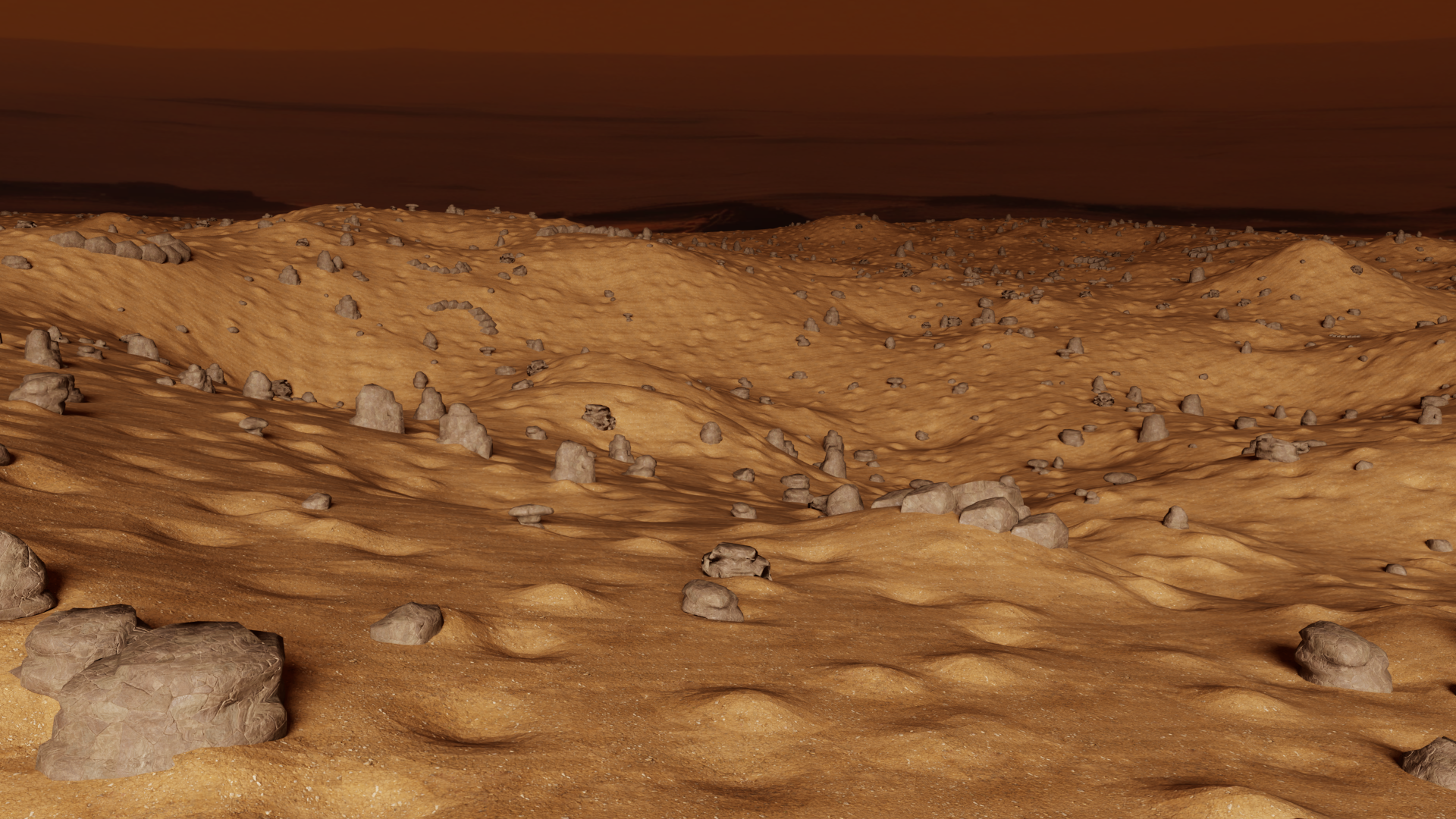
Below the environment used in this task in shown, it features a 200m x 200m map with obstacles.
Tube Grasping
Dataset Recordings
RLRoverLab records datasets from examples/03_inference/eval.py when
--dataset_name is set. Files are written to
<dataset_dir>/<dataset_name>.hdf5 on environment close.
python examples/03_inference/eval.py \
  --task AAURoverEnvRGBDRawWVGA-v0 \
  --num_envs 1 \
  --steps 1000 \
  --enable_cameras \
  --dataset_dir ./datasets \
  --dataset_name rover_wvga_expert_1000 \
  --dataset_type RL_COMPRESSED
Recorder Types
--dataset_type | Format | Use when |
|---|---|---|
RL | Legacy Isaac Lab HDF5, robomimic-style layout | A loader expects /data/demo_*/obs, /data/demo_*/next_obs, actions, rewards, and dones. |
IL | Legacy Isaac Lab HDF5, robomimic-style layout | Only observations and actions are needed. |
RL_COMPRESSED | Optimized RLRoverLab RGB-D schema | RGB-D storage size and random-access offline loading matter more than direct robomimic layout compatibility. |
Legacy HDF5
RL and IL use Isaac Lab’s default HDF5 dataset writer. The layout follows
the robomimic convention of storing demonstrations under /data/demo_N.
Current robomimic training compatibility still depends on the loader,
environment metadata, and observation keys used by the training config.
For RL, each episode contains:
| Path | Contents |
|---|---|
/data | Root data group. Attribute total is the total transition count; env_args stores environment metadata as JSON. |
/data/demo_N | One recorded episode. Attributes include num_samples and optional seed and success. |
/data/demo_N/actions | Action tensor for each transition. |
/data/demo_N/rewards | Reward tensor for each transition. |
/data/demo_N/dones | Done flags for each transition. |
/data/demo_N/obs/... | Observation at time t. |
/data/demo_N/next_obs/... | Observation after the action, at time t + 1. |
IL uses the same episode layout but records only actions and obs.
Datasets are gzip-compressed by HDF5. This format is simple and compatible with
many robomimic-style loaders, but RGB-D trajectories are large because
next_obs physically duplicates the next observation tree.
Use it with:
python examples/03_inference/eval.py \
  --task AAURoverEnvRGBDRawWVGA-v0 \
  --num_envs 1 \
  --steps 1000 \
  --enable_cameras \
  --dataset_dir ./datasets \
  --dataset_name rover_wvga_legacy_1000 \
  --dataset_type RL
Optimized RGB-D HDF5
RL_COMPRESSED writes RLRoverLab’s optimized RGB-D HDF5 schema. It stores RGB
and depth observations once in an indexed timeline instead of duplicating a
physical next_obs tree.
Use it when RGB-D storage size and random-access offline loading matter more than direct robomimic layout compatibility. The full dataloader contract is in Optimized RGB-D HDF5.
Record an optimized RGB-D dataset with:
python examples/03_inference/eval.py \
  --task AAURoverEnvRGBDRawWVGA-v0 \
  --num_envs 1 \
  --steps 1000 \
  --enable_cameras \
  --dataset_dir ./datasets \
  --dataset_name rover_wvga_compressed_1000 \
  --dataset_type RL_COMPRESSED
Optimized RGB-D HDF5
--dataset_type RL_COMPRESSED writes RLRoverLab’s optimized RGB-D schema:
rlroverlab.offline_rgbd_v2 with format_version = 2. It is designed for
offline RGB-D dataloaders, not Isaac Lab episode replay or direct robomimic
layout consumption.
The key idea is simple: for an episode with T actions, the file stores
T + 1 observations once in a single observation timeline. A transition stores
the action, reward, done flags, and two integer indices: one pointing to
obs_t, and one pointing to obs_{t+1}. Therefore the file has no physical
next_obs group.
File Attributes
Only a few attributes are needed to load samples. The others are metadata that make the file easier to inspect and validate.
| Attribute | Expected value or meaning |
|---|---|
schema_name | Must be rlroverlab.offline_rgbd_v2. |
format_version | Must be 2 for this document. |
writer_status | Must be complete; incomplete or failed files should not be used for training. |
recommended_rgb_scale | Scale applied by the loader after RGB decode. Default is 1 / 255. |
recommended_depth_scale_m | Scale applied by the loader after depth decode. Default is 0.001 m per integer unit. |
depth_invalid_sentinel | Invalid depth value after decode. Default is 0. |
total_transitions | Convenience count. It should match len(/transitions/actions). |
total_observations | Convenience count. It should match len(/observations/rgb_jpeg). |
Attributes such as zero_structural_duplication, total_episodes,
camera_width, camera_height, camera_channels, depth_min_m,
depth_max_m, codec names, source names, and JPEG quality are useful for
inspection, but a loader can derive or ignore them.
Groups
The optimized file has three data groups that matter to a loader:
/observations, /transitions, and /index.
| Group | Purpose |
|---|---|
/observations | Stores every observation once. Visual observations are compressed byte arrays; non-visual observations are numeric timelines. |
/transitions | Stores transition-level values such as actions, rewards, and done flags. |
/index | Connects transition rows to observation rows and, for sequence loaders, to episode boundaries. |
/episodes and /data are metadata groups. They are useful for inspection and
environment metadata, but they are not needed to reconstruct training samples.
Observations Group
/observations has one row per observation timestep. For each episode with T
actions, this group receives T + 1 rows: the initial observation and one
post-action observation for each transition.
| Path | Contents |
|---|---|
/observations/rgb_jpeg | Shape (num_observations,). Each row is a variable-length uint8 array containing one JPEG frame. Decode to RGB uint8 with shape (H, W, 3). |
/observations/depth_jp2 | Shape (num_observations,). Each row is a variable-length uint8 array containing one JPEG2000 depth image. Decode to single-channel uint16 depth in millimeters. |
/observations/state/... | Optional numeric observation values. Every leaf dataset has length num_observations. Keys are task-dependent; common rover keys include angle_diff, distance, and heading. |
RGB and depth rows with the same observation index belong to the same timestep. State rows, when present, use the same indexing.
Transitions Group
/transitions has one row per action step. A minimal offline RL transition uses
actions, rewards, and dones.
| Path | Contents |
|---|---|
/transitions/actions | Action tensor. First dimension is num_transitions; remaining dimensions are the action shape. |
/transitions/rewards | Reward tensor. First dimension is num_transitions. |
/transitions/dones | Boolean episode-boundary flag for each transition. |
/transitions/timeouts | Optional boolean flag for time-limit truncations. |
/transitions/terminals | Optional boolean flag for true terminal states. If timeouts is present, this can be derived as dones & ~timeouts. |
/transitions/extra/... | Optional numeric transition data. Every leaf dataset has length num_transitions. |
For the simplest loader, dones is enough. timeouts and terminals are kept
to support offline RL algorithms that distinguish real terminal states from
time-limit truncations.
Index Group
/index is what replaces a physical next_obs group. It maps each transition
row to the observation row for obs_t and obs_{t+1}.
| Path | Contents |
|---|---|
/index/obs_index | int64, shape (num_transitions,). Observation row for obs_t. |
/index/next_obs_index | int64, shape (num_transitions,). Observation row for obs_{t+1}. In the current writer this is always obs_index + 1. |
/index/episode_lengths | int64, shape (num_episodes,). Optional for random transition loading, required for episode-aware sequence sampling. |
/index/obs_offsets | int64, shape (num_episodes,). First observation row for each episode. Required for sequence loading. |
/index/transition_offsets | int64, shape (num_episodes,). First transition row for each episode. Required for sequence loading. |
/index/episode_id | Optional per-transition episode id. Derivable from episode_lengths and transition_offsets. |
/index/episode_transition_index | Optional local timestep inside each episode. Derivable from transition_offsets. |
For a random transition dataloader, only obs_index and next_obs_index are
strictly needed. Episode offsets and lengths are needed when sampling contiguous
sequences, splitting by episode, or doing frame stacking without crossing
episode boundaries.
Index Invariants
For episode e:
| Quantity | Meaning |
|---|---|
T = /index/episode_lengths[e] | Number of transitions in episode e. |
o0 = /index/obs_offsets[e] | Start of the episode’s observation timeline. |
t0 = /index/transition_offsets[e] | Start of the episode’s transition rows. |
| Observation rows | o0, o0 + 1, ..., o0 + T. There are T + 1 rows. |
| Transition rows | t0, t0 + 1, ..., t0 + T - 1. There are T rows. |
For global transition row i, a loader reconstructs the transition as:
| Field | Read from |
|---|---|
obs | Decode observation at /index/obs_index[i]. |
action | /transitions/actions[i]. |
reward | /transitions/rewards[i]. |
next_obs | Decode observation at /index/next_obs_index[i]. |
done | /transitions/dones[i]. If absent in older files, use terminals[i] or timeouts[i]. |
terminal | /transitions/terminals[i]. |
timeout | /transitions/timeouts[i]. |
The writer validates that next_obs_index[i] == obs_index[i] + 1 and that the
next index never points past total_observations.
Visual Decode Rules
RGB frames are stored as raw camera RGB values encoded as JPEG.
- Read
encoded = file["observations/rgb_jpeg"][obs_index]. - Convert the variable-length
uint8array to bytes. - Decode JPEG to
uint8. - Ensure channel order is RGB. Pillow returns RGB after
.convert("RGB"); OpenCV returns BGR and must be converted with[..., ::-1]. - Convert to
float32and multiply byrecommended_rgb_scalefor training. - Common tensor layout for PyTorch is channel-first
(3, H, W).
Depth frames are metric camera depth values quantized before compression.
- Source depth is in meters.
- During recording, finite depths in
[depth_min_m, depth_max_m]are rounded to millimeters and stored asuint16. - Invalid, NaN, too-near, or too-far depth values are stored as
depth_invalid_sentinel, normally0. - Read
encoded = file["observations/depth_jp2"][obs_index]. - Decode JPEG2000 to a single-channel
uint16image. - Convert to
float32meters withdepth_m = decoded_uint16 * recommended_depth_scale_m. - Preserve or mask
decoded_uint16 == depth_invalid_sentinelas invalid. Do not treat0as a valid obstacle distance. - Common tensor layout for PyTorch is
(1, H, W).
JPEG2000 decode requires a library built with JPEG2000 support. Pillow with OpenJPEG works on CPU. CUDA loaders can use torchvision or nvJPEG for RGB JPEG and NVIDIA nvImageCodec or nvJPEG2000 for depth JP2.
Reconstructing Samples
For global transition row i, read:
| Sample field | Source |
|---|---|
obs | Decode /observations/... at row /index/obs_index[i]. |
action | /transitions/actions[i]. |
reward | /transitions/rewards[i]. |
next_obs | Decode /observations/... at row /index/next_obs_index[i]. |
done | /transitions/dones[i]. |
timeout | /transitions/timeouts[i] if present. |
terminal | /transitions/terminals[i] if present, otherwise done and not timeout when timeout is available. |
extra | Any matching row in /transitions/extra/.... |
The current writer validates that next_obs_index[i] == obs_index[i] + 1 and
that the next index never points past the observation timeline.
For sequence loaders, select one episode e, choose a local start timestep
s, then read transition rows
transition_offsets[e] + s : transition_offsets[e] + s + sequence_length and
observation rows obs_offsets[e] + s : obs_offsets[e] + s + sequence_length.
The corresponding next_obs rows are the same observation rows shifted by one.
Addings new robots or assets
Adding new assets
To integrate a new robot asset into your project, please follow the steps outlined below. These steps ensure that the asset is correctly added and configured for use in Isaac Lab.
Step 1: Collect the Asset
Begin by collecting the necessary asset within Isaac Sim. You do this by right clicking your robot USD file, and click collect as illustratred in the figure below.
You then type in the following options, select an output folder and click collect.
Step 2: Add the Asset Files
Once you have the asset, you need to add it to your project’s file structure. Specifically:
-
Navigate to
rover_envs/assets/robots/YOUR_ROBOT_NAME. -
Add the Universal Scene Description (USD) file along with any related content (textures, metadata, etc.) to this directory.
Make sure to replace
YOUR_ROBOT_NAMEwith the actual name of your robot to maintain a clear and organized file structure.
Step 3: Create the Configuration File
For each robot asset, a configuration (cfg) file is required. This file specifies various parameters and settings for the robot:
- Create a new cfg file named
YOUR_ROBOT_NAME.cfgin the same directory as your asset files (rover_envs/assets/robots/YOUR_ROBOT_NAME).
Step 4: Configure the Robot
The final step involves configuring your robot asset using the newly created cfg file:
- Open
YOUR_ROBOT_NAME.cfgand configure it as needed. You can refer to previous configuration files for examples of how to structure your settings. An example configuration file can be found here: Exomy Example Configuration.
By following these steps, you can successfully add and configure a new robot asset and use the suite to train an agent or perform experiments.
Adding a new task
Adding a New Task
To incorporate a new task into your project, follow the steps outlined below. This guide ensures that your new task is properly set up and integrated within the existing project structure.
Step 1: Create a New Environment Folder
- Within the
rover_envs/envsdirectory, create a new folder named after your task (TASK_FOLDER). This folder will house all the necessary configuration files for your new task.
Step 2: Create the Task Configuration File
- Inside
TASK_FOLDER, create a configuration file namedTASK_env_cfg.py, substitutingTASKwith the name of your task. This file will define the task’s configuration.
Step 3: Define the MDPs
-
In
TASK_env_cfg.py, you’ll define the configurations for actions, observations, terminations, commands, and, optionally, randomizations that make up your task’s Markov Decision Process (MDP).You can refer to the Navigation Task example for guidance on how to structure this file.
Step 4: Set Up the Robot Folder
-
Within
rover_envs/envs/TASK_FOLDER, create a new folder namedrobots/ROBOT_NAME, replacingROBOT_NAMEwith the name of the robot used in the task.In this folder, create two files:
__init__.pyandenv_cfg.py.
Step 5: Configure env_cfg.py
- The
env_cfg.pyfile customizesTASK_env_cfg.pyfor a specific robot. At a minimum, it should contain the following Python code:
from rover_envs.assets.robots.YOUR_ROBOT import YOUR_ROBOT_CFG
from rover_envs.envs.YOUR_TASK.TASK_env_cfg.py import TaskEnvCfg

@configclass
class TaskEnvCfg(TaskEnvCfg):

    def __post_init__(self):
        super().__post_init__()

        # Define robot
        self.scene.robot = YOUR_ROBOT_CFG.replace(prim_path="{ENV_REGEX_NS}/Robot")
Make sure to replace YOUR_ROBOT and YOUR_TASK with the appropriate robot and task names
Step 6: Configure __init__.py
This file registers the environment with the OPENAI gym library. Include at least the following code.
import os
import gymnasium as gym
from . import env_cfg

gym.register(
    id="TASK_NAME-v0",
    entry_point='isaaclab.envs:ManagerBasedRLEnv',
    disable_env_checker=True,
    kwargs={
        "env_cfg_entry_point": env_cfg.TaskEnvCfg,
        "best_model_path": f"{os.path.dirname(__file__)}/policies/best_agent.pt", # This is optional
    }
)
Step 7: Running the Task
With everything set up, you can now run the task as follows:
# Run training policy
cd examples/02_train
python train.py --task="TASK_NAME-v0" --num_envs=128
Benchmarks
Benchmarks will be available soon. Stay tuned!